Tuesday, 3 March 2015

Parametrized report using Department Table


  • In the Existing solution add a new report with the name "DeptReport".
  • Right click on Parameters.
  •  Select "Add Parameters.." then "Report Parameter Properties" will open.
  • Give the required names (Highlighted in the above screen). Then click on "OK" button.
  • Create "Data Source" and "Dataset". While dataset creation use Dept table instead of Employee table.
    • Query: 
      • SELECT        DEPT_ID, Name, Location
        FROM            DEPT
        WHERE DEPT_ID IN (@DEPT_ID) 
  • Go to "Parameters" selection and click on expressions (Highlighted in the below screen).
  • Then "Expression" window will open. Write the below expression
    • =IIF(Parameters!DEPT_ID.Value="",-1,Split(Parameters!DEPT_ID.Value,","))
  • Then after click on "OK" button.
  • In designer window insert a table and map the columns.
  • Click on "Preview" and pass the variable values and then click on "View Report" button. Then report will generate.


Sample Employee and Department tables creation


Dept Table:


CREATE TABLE [dbo].[DEPT](
      [DEPT_ID] [int] NOT NULL,
      [Name] [varchar](30) NULL,
      [Location] [varchar](30) NULL,
 CONSTRAINT [PK_DEPT] PRIMARY KEY CLUSTERED
(
      [DEPT_ID] ASC
))

INSERT INTO DEPT VALUES
(10,'Design','Hyd'),
(20,'Sales','Bang'),
(30,'Accounts','Che'),
(40,'Maintenance','Pune'),
(50,'Engineering','Delhi');


Employee Table:


CREATE TABLE [dbo].[EMPLOYEE](
      [ID] [int] NOT NULL,
      [FirstName] [varchar](30) NULL,
      [LastName] [varchar](30) NULL,
      [Gender] [char](1) NULL,
      [Designation] [varchar](10) NULL,
      [ManagerID] [int] NULL,
      [Dept_ID] [int] NULL,
      [Salary] [decimal](18, 4) NULL,
      [Commission] [decimal](18, 4) NULL,
      [HireDate] [date] NULL,
 CONSTRAINT [PK_EMPLOYEE] PRIMARY KEY CLUSTERED
(
      [ID] ASC
));
ALTER TABLE EMPLOYEE ADD CONSTRAINT FK_EMPLOYEE FOREIGN KEY (Dept_ID) REFERENCES DEPT(Dept_ID);


INSERT INTO EMPLOYEE VALUES (101,'Charan','Yagenti','M','Developer',105,10,4000,NULL,'2001-05-21')
INSERT INTO EMPLOYEE VALUES (102,'Roja','Mare','F','Developer',105,10,3500,NULL,'2005-03-18')
INSERT INTO EMPLOYEE VALUES (103,'Mahi','Jagarla','M','Sales man',104,20,3000,500,'2011-05-23')
INSERT INTO EMPLOYEE VALUES (104,'Puja','Dama','F','Manager',110,20,8000,NULL,'2009-05-19')
INSERT INTO EMPLOYEE VALUES (105,'Vijay','Kanti','M','Manager',110,10,10000,NULL,'2001-10-30')
INSERT INTO EMPLOYEE VALUES (106,'Krishna','Konda','M','Sales man',104,20,2500,600,'2010-09-05')
INSERT INTO EMPLOYEE VALUES (107,'Prabhaker','Venna','M','Account',109,30,8000,NULL,'2006-03-11')
INSERT INTO EMPLOYEE VALUES (108,'Nagini','Nagavara','F','Account',109,30,8500,NULL,'2000-11-25')
INSERT INTO EMPLOYEE VALUES (109,'Giri','Pinniboina','M','Manager',110,30,15000,NULL,'2008-04-04')
INSERT INTO EMPLOYEE VALUES (110,'Raja','Pedaraju','M','Manager',Null,40,20000,NULL,'2000-01-10')

INSERT INTO EMPLOYEE VALUES (111,'Charan','Jammi','M','Developer',105,10,6000,NULL,'2007-10-25')

Friday, 27 February 2015

Ad hoc Reports


1   2   3   4   5   6   7   8   9   10   11   12   13   14   15   16

    
    SSRS comes with a built-in modeling tool called Report Model Designer which is used for developing ad-hoc reports. The main purpose of the report model is to shred the dependency on the coding and give a semantic model to the user to  develop their own reports on the fly without consulting the developer.

Example:

  • Open BIDS
  • Create a new "Report Model Project", the solution name is "ReportModelProject".
  • Give the required path for the new solution.
  • Solution Explorer --> Right click on "Report Models" and select "Add New Report Model".
  • Report Model Wizard window will open.
  • Click on "Next >" Button. Then "Select Data Source View" page will open.
  •  Select the required "Data Source View" from the "Available data source views". After that "Next >" button then "Select report model generation rules" page will open.
  • Click on "Next >" button. Then "Collect Model Statistics" page will open.
  • Click on "Next >" button then "Completing the Wizard" page will open.
  • Give the required name (EmployeeReport) and then click on "Run" button.
  • Click on "Finish" button.
  • In 'Solution Explorer' right click on solution "ReportModelProject" and select 'Build'.
  • Make sure the 'Build' is success.
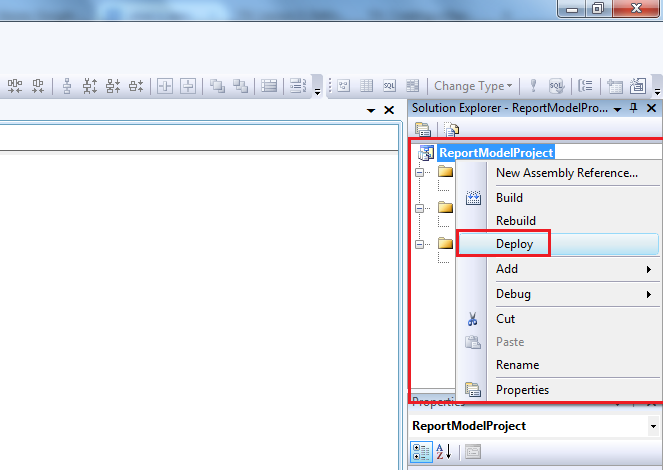
  • Again right click on solution "ReportModelProject" and select 'Deploy'.


  • Make sure 'Deploy' process completed without errors.
  • Open 'Internet Explorer' type/past the URL: http://localhost/Reports/
  • Then "SQL Server Reporting Services" will open.
  • Click on 'Report Builder'. If you are opening first time then it will ask to run the Report builder exe file. Then click on "Run" button.
  • After that report builder will open.
  • Click on "Blank Report".
  • Right click on "Data Sources".
  • Select the "Add Data Source..", then the "Data Source Properties" will open.
  • Click on "Browse.." button. then browse the required report.
  • Click on "Open" button.
  • Click on "OK" button.
  • Right click on "Dataset".
  • Select "Add Dataset..", then the "Dataset Properties" will open.
  • Select the "Use a dataset embedded in my report" check box. Select the "Data Source" from the drop down list. Then after click on "Query Designer.." button, then Query Designer will open.
 
  • Select the required table and double click on required columns, then after click on "OK" button.
  • Click on "OK" button.
  • Right click on designer window and insert table (Highlighted in the above screen.
  • Add report header and required columns. Click on Run (Highlighted in the above screen top left side).
  • Report is generated.

Tuesday, 24 February 2015

Data Source Views


1   2   3   4   5   6   7   8   9   10   11   12   13   14   15   16

     Cascading parameters provide a way of managing large amounts of report data. With cascading parameters, the list of values for one parameter depends on the value chosen in preceding parameter. Order is important for cascading parameters because the dataset query for a parameter later in the list includes references to parameters earlier in the list.


    A data source view is a logical data model based on one or more data sources.

  • Open required solution.
  • Right click on "Data Source Views" and select "Add New Data Source View".
  •  "Data Source View Wizard" window will open.
  • Click on "Next >" button. Then "Select a Data Source" page will open.
  • Click on "Next >" button.Then "Name Matching" page will open.
  • Click on "Next >" button. Then "Select Tables and Views" page will open.
  • Click on "Next >" button. Then "Completing the Wizard" page will open.
  • Give the required name (Employee) and click on "Finish" button.
  • Data source view is created.